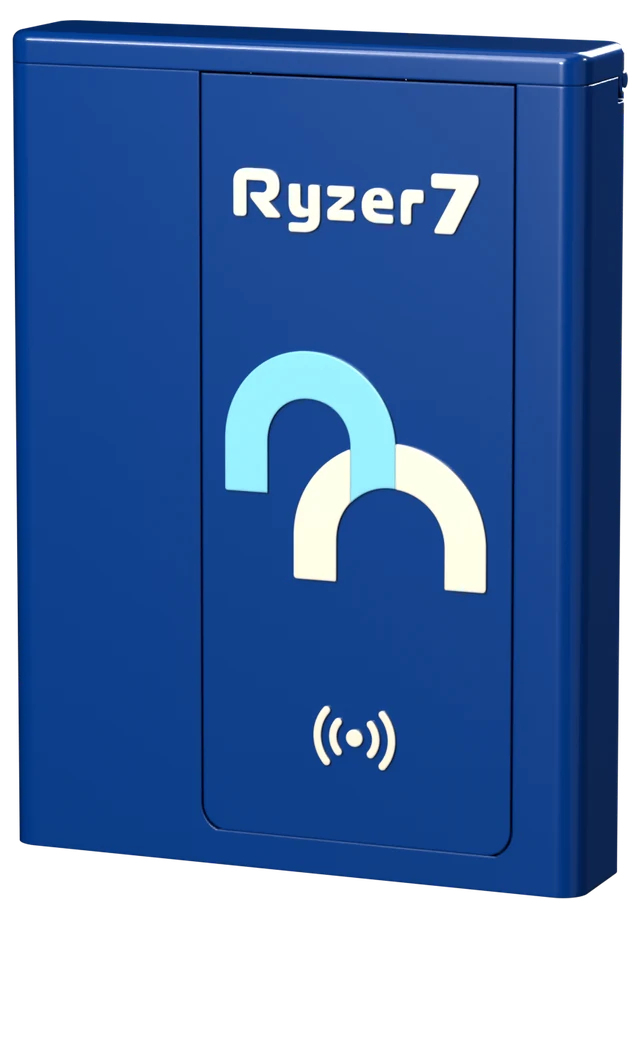
In four steps
- Install an NFC app (see below).
- In the app, choose Write and add what a tap should do: a link, a contact card or Wi-Fi.
- Tap Write and hold the back of your phone against the NFC logo until the app confirms. On an iPhone, use the top of the phone.
- Test it: tap the case with an unlocked phone.
iPhone
NFC Tools, NFC TagWriter by NXP or Simply NFC. Writing works on iPhone 7 or newer. iPhone XS and newer read the tag by themselves; on iPhone 7 to X, open the NFC reader in Control Center first.
On an iPhone XS or newer, the Shortcuts app (Automation → NFC) can also start a shortcut when you tap the case.
Android
NFC Tools or NFC TagWriter by NXP. Switch NFC on in Settings first; after that your phone reads the tag without an app.
What can you put on it?
- A link
- A contact card
- Wi-Fi
- Your socials
- A phone shortcut
- A smart-home routine
Doors and locks work only with systems that accept a programmable NFC tag.
How much fits on it?
The spot (NTAG215) holds 504 bytes: enough for a link, a short contact card or Wi-Fi details.
Do not lock it
Do not use the Lock option in the app: a locked tag can never be changed again.
The NFC spot is part of Ryzer 7
Ryzer 7 is a cigarette case for seven cigarettes with a push-up slider, a card slot and a loop for your key or a charm. Read about the size or about the card holder.
Price and availability
€24.95. The first 77 orders pay €14.95 and get exclusive charms that match their case. Prices include VAT, excluding shipping. We ship to all EU countries. Ordering is not open yet.
Everyone on the list gets one message at launch.
Ryzer 7 by Plizo Things. For adults only (18+). PUSH | SHARE | GO